

Tag: product

More Control, Faster Playlist Editing, and Other Updates for Everyday Listening on Spotify

Spotify logo on top of blue gradient background

A little refresh can go a long way. We’ve been making behind-the-scenes updates to make Spotify easier to use and more reliable. Based on your feedback, we’re rolling out a series of improvements focused on the everyday features that help keep listening smooth.

Organize your playlists into folders, right from your phone

Your Library is the heart of your listening, and now you can keep it organized on the go. Playlist folders, a longtime desktop favorite, are now available on mobile. You can group your playlists by mood, activity, or genre, making it easier to find the right playlist for any moment.

Available now for all users globally. 

Manage your playlists and queue with more control

For those with carefully crafted playlists, you can now use in-playlist bulk actions to edit and reorganize multiple tracks, books, or podcast episodes at the same time—saving you time and taps.

Rolling out now for all users globally. And for Premium users, we’ve brought back the ability to select and manage multiple songs in your play queue at once.

Enjoy more reliable offline listening

We’ve made offline listening more dependable with the rollout of background downloads on iOS. Your music and podcasts will keep downloading even when the app isn’t open, and you’ll see notifications showing their progress. So whether you’re on a flight, underground, or out of range, your listening is ready to go. 

Rolling out now for Premium users globally. 

Reshuffle your queue with one tap

Mix up the order of your shuffle anytime with the reshuffle button. It’s a fresh way to rediscover a favorite playlist, set a different pace, or hear something new from the music you already love. If the lineup isn’t quite hitting, tap reshuffle for a new sequence. No more toggling shuffle off and back on.

Available now for Premium users on mobile globally.

These are just a few ways we’re improving Spotify, so you can spend less time managing your music and more time enjoying it. Make sure your app is up to date to get the latest features.

Podcast Clips Make Your Favorite Moments Easier to Save and Share

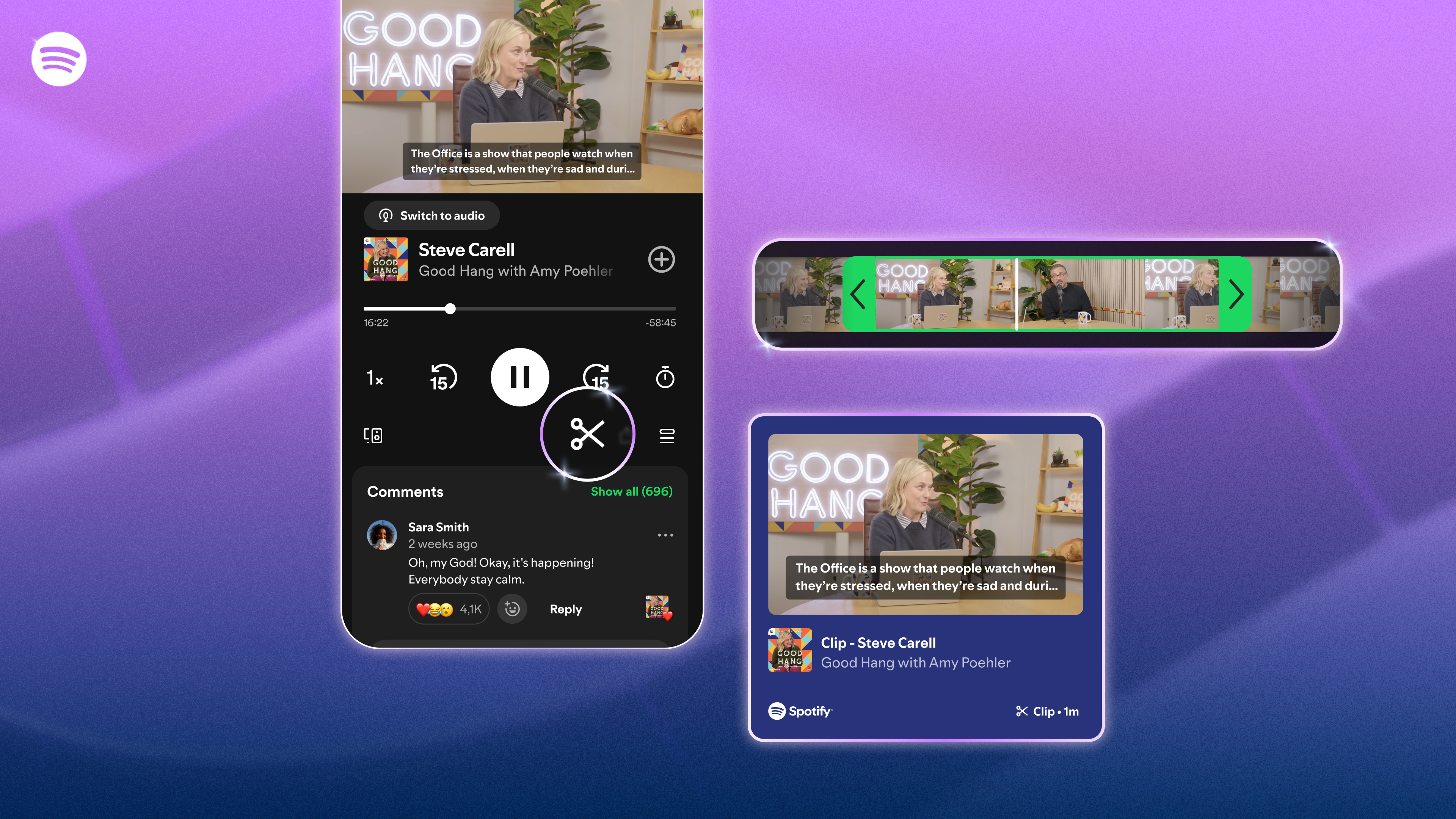
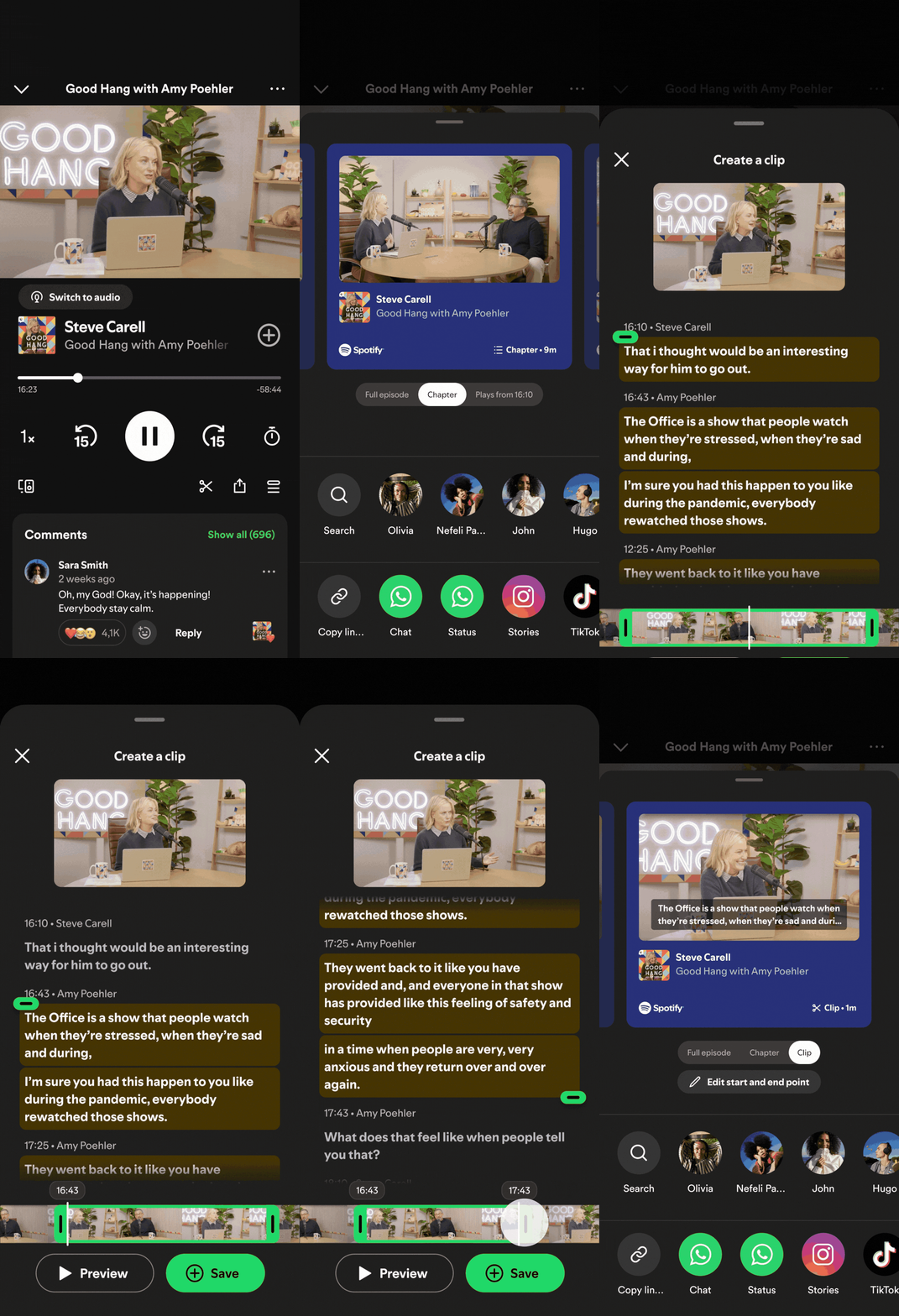
3 images showing the user experience for the new podcast clips feature on Spotify, set against a purple/blue gradient backdrop

The best podcast moments deserve more than just a mental note. That’s why today, we’re making those moments easier to save and share with clips.

Whether it’s a piece of advice that reframes how you think, a conversation that makes you laugh, or a segment you know a friend needs to hear, those moments are often what turns a casual listener into a devoted fan. 

With clips, listeners can now capture, revisit, and share the exact moments from podcasts that resonate most, without having to search through an entire episode to find them.

Clips also come with an upgraded sharing experience. The updated sharing menu gives you more ways to share what you’re hearing, whether it’s a full episode, a chapter, a timestamp, or a clip—all accessible directly from the share icon.

Moments worth coming back to

When listeners hold onto those moments, they come back for more. Your saved clips have a dedicated space in Your Library and can also be added to podcast playlists, so the moments that matter don’t get lost.

Chapters, which launched earlier this year, are already being saved and playlisted more than 2 million times a month. Early testing has also shown that podcast saving increases when clips are enabled. For creators, a saved or shared clip can be a new entry point for potential fans, turning a single moment into a discovery or deeper connection.

How it works

    • While listening, tap the scissor icon in the Now Playing view to capture the moment you want to keep. Trim it to fit, then hit Save or Share.
    • For more sharing options, tap the share button and choose your format—full episode, chapter, timestamp, or clip—then send it directly to friends via Spotify Messages or any supported platform.
    • All clips are saved in Your Library, ready to revisit or add to a podcast playlist whenever you want.


Clips for podcasts are starting to roll out globally to Free and Premium users on mobile, with availability expanding across more shows over time. Look for the clip icon next time you’re listening and start saving the moments that matter.

Introducing a Smarter, Smoother Experience for Tablets

Adaptive Tablet Layout screens

At Spotify, we want your experience to feel intuitive and personal across every moment of the day. Whether you’re streaming your favorite playlist while you work or browsing new recommendations on the go, Spotify should feel familiar and easy to use. With tablets—which are often used on the sofa or at a kitchen counter and offer more screen space to browse—we saw an opportunity to give the Spotify experience a little refresh.

Today we’re introducing a new app experience tailored for your tablet, designed to make listening, watching, and discovery feel more natural on larger screens.

A smarter, more responsive design

The refreshed tablet layout, available on iOS and Android devices, is designed to create a more seamless experience across screens where you use Spotify. Rather than simply scaling up mobile components, we designed the tablet experience to take advantage of the extra space, so you can browse and discover new favorites right alongside what you’re already playing. In addition, improvements we make to mobile can reach tablet users faster.

“From TV to desktop to the car, we’ve been designing Spotify to feel native to each screenand now we’re bringing that same experience to tablets,” said Nicole Burrow, Head of Design, Consumer Experience, Spotify. “Tablets give you more room to explore, so we designed it to let you browse and discover new favorites alongside what’s already playing. The goal was simple: Wherever you open Spotify, it should feel unmistakably like Spotify.”

What’s new

    • Adaptive orientation: The interface now reconfigures—not just resizes—as you switch between portrait and landscape, so it feels balanced and intentional in both views.
    • A collapsible sidebar: The new sidebar lets you browse and discover alongside your playback, or expands for deeper focus. It also includes interactive, scrollable content so you can explore without leaving what’s playing.
    • An enhanced video experience: The “Switch to Video” toggle is now front and center, making it simpler to move into a more immersive viewing experience.
    • Parallel browsing: Keep music or video playing on one side of the screen while you explore your library or recommendations on the other.
    • A familiar feel: The core navigation stays the same, so the experience still feels like a natural extension of the mobile app. The bottom navigation bar keeps your main pages within easy reach, while the collapsible side drawer gives you quick access to your profile and settings.

With this update, your tablet becomes an even better place to discover music, podcasts, audiobooks, and video. It’s another step toward a more unified Spotify experience, one that can keep evolving across the devices you use today and the ones you’ll use tomorrow.

A New Era of Personalization: Shape Your Taste Profile on Spotify

Spotify has always been built around your taste. More than 80% of listeners say personalization is what they love most about us. Now we’re taking that even further by giving you more visibility and control over how your taste shapes your experience.

On stage at SXSW, our Co-CEO Gustav Söderström announced our next evolution in this space: the ability to review and directly shape your Taste Profile. This new beta feature will begin rolling out to Premium listeners in New Zealand in the coming weeks.


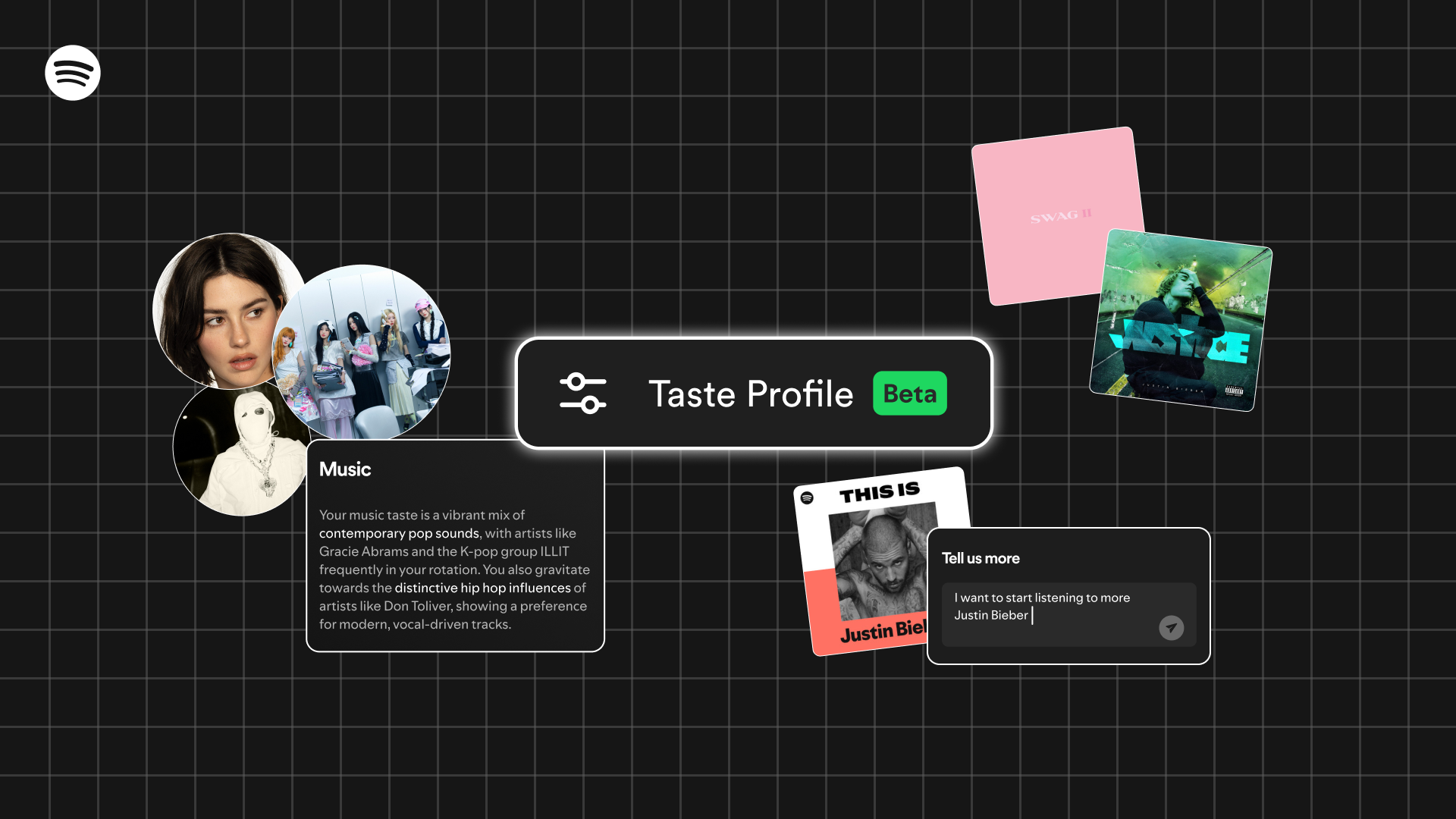
Taste Profile lets you see how Spotify understands your taste and shape it yourself, giving you the ability to steer what you see on the Spotify homepage. It brings together what you listen to across music, podcasts, and audiobooks, from the artists and genres you love to the habits that define your day. You might see that you’re starting to explore ’90s alternative rock, or gravitating toward hip-hop with distinctive influences.

If something doesn’t feel quite right, you can tell us by flagging when your profile misses the mark—asking for more or less of a certain vibe, or simply sharing what you’re in the mood for. Your input helps determine what gets prioritized, what gets dialed back, and what you discover next on the Spotify homepage.

Beyond listening patterns, Taste Profile is designed to capture new dimensions of your taste, like your current interests and habits. Maybe you’re training for a marathon and want more upbeat tracks for morning workouts, or maybe you like to listen to news podcasts during your weekday commute. These signals allow for even deeper personalization. You can shape your Taste Profile as much as you’d like, or leave it and enjoy Spotify as usual. 

This is the next step in our vision to make personalization more transparent, responsive, and truly yours. It joins our latest beta launch, Prompted Playlist, which lets you steer the algorithm by creating playlists that tap into your full listening history or anything else you’re in the mood for. As we continue building the future of Spotify, we’re excited to help you shape an experience that grows and evolves alongside you.

Ring In the New Year With New Playlists Mixed by Artists, and More Spotify Hacks

Featured musical artists on a purple background

The right playlist is essential on New Year’s Eve, building the energy as you get ready and keeping it high as you count down to midnight. This year, Spotify has your every moment covered. From pro-level party mixes to your own customized creations, here’s how to make your soundtrack unforgettable.

Set the vibe with new mixed playlists

Looking for the perfect party starter? We tapped some of your favorite artists to mix their own New Year’s Eve playlists on Spotify. Head to our Mixed By hub to find and save these new playlists from Anyma and Solomun, Rawayana, Amaarae, Cash Cobain, Jessie Ware, SG Lewis, Rochelle Jordan, Jim E-Stack, and Tiësto.

5 Ways to Get More out of Your Playlists on Spotify

Your playlists are personal. They’re the soundtracks to your road trips, your quiet mornings, and your biggest celebrations; collections of memories and discoveries you’ve curated over the years.

On Spotify, your playlists can grow and evolve with you. With powerful tools for discovery, collaboration, and personalization, you can shape them in new ways, making them feel and sound fresh. They’ll also help you explore your own taste as well as the tastes of your friends and family.

Here are five ways to get more out of your music collections on Spotify.

1. Easily move your playlists to Spotify

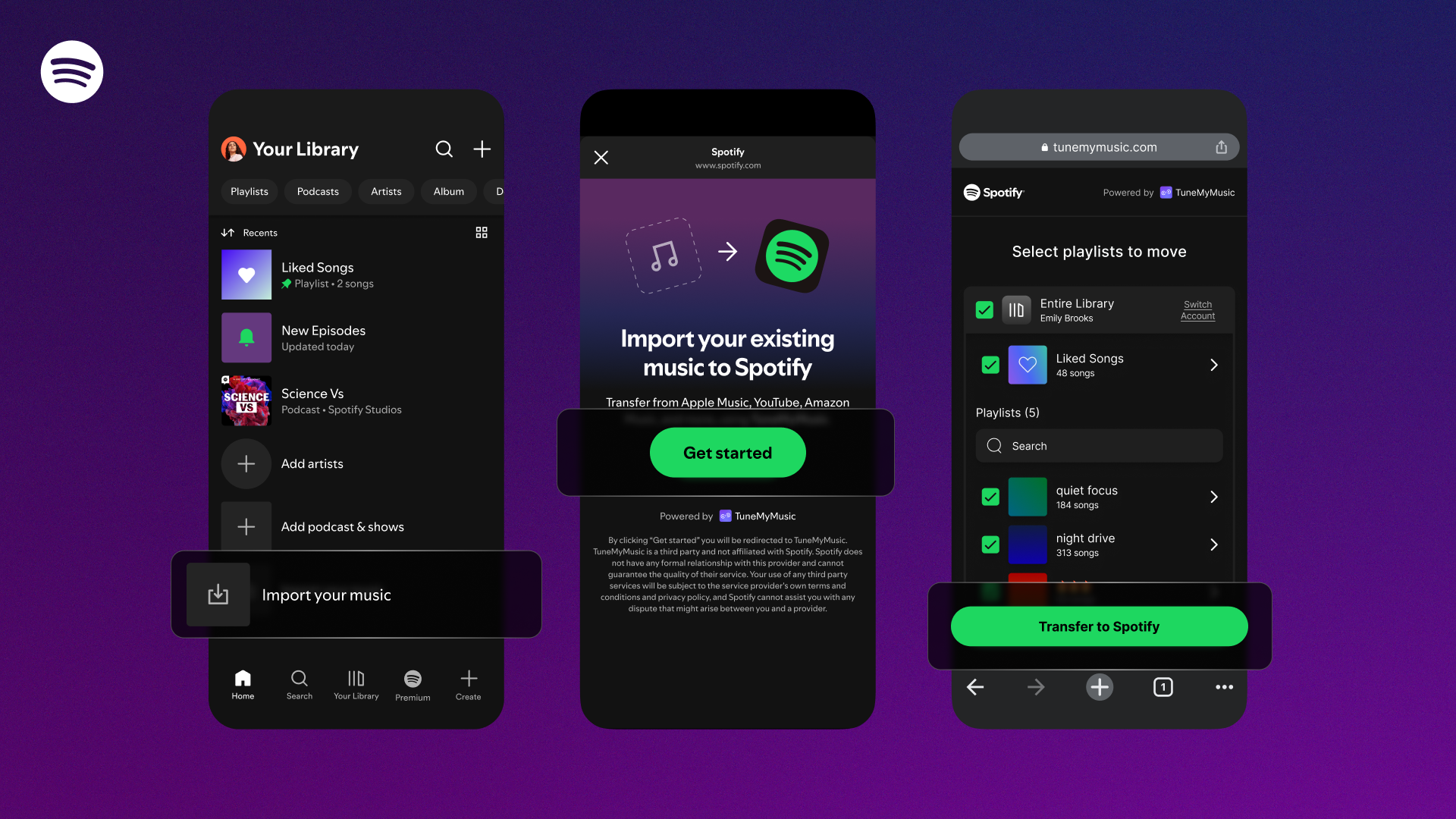
First things first: getting your playlists onto Spotify. Our latest TuneMyMusic integration, available on mobile and rolling out globally over the coming days, makes it incredibly simple to transfer playlists from other streaming services straight into your Spotify library so you don’t have to start from scratch. No lost favorites, just an easy, built-in way to bring your music home.

Here’s how it works:

    • Head to Your Library in the Spotify mobile app and scroll to the bottom.
    • Tap “Import your music” and follow the prompts to connect with TuneMyMusic.
    • Choose the platform you’d like to transfer from, and watch your playlists appear in Spotify.

2. Make your playlists your own

Once your playlists are on Spotify, you can make them your own with a suite of creative tools. Invite friends to collaborate on a shared playlist or design custom cover art to give it a unique touch. And with newer features like the ability to mix your own playlist transitions so every track flows smoothly into the next, and Smart Filters (available in select markets) to organize your Library by mood, genre, or activity, Premium users have even more ways to shape how they listen.

3. Get personalized recommendations faster

As soon as you start listening to your imported playlists, Spotify’s personalization engine begins to learn your taste. For new listeners, that means Spotify gets to know your taste early on, so personalized playlists like daylist and Release Radar start feeling familiar from the start.

4. Share and listen together with friends

A playlist is a labor of love, a reflection of who you are and what you enjoy. And on Spotify, you can easily collaborate on playlists with friends. With Messages, you can instantly share your favorite playlists and chat about what you’re listening to with friends right in the app (available for users 16+ in select markets). Want to create something new together? See how your tastes match up with Blend, or, if you’re a Premium user, start a real-time listening session with Jam.

5. Give your playlists the sound they deserve

Your music collections can now sound better than ever. With Lossless, Premium listeners in eligible markets can stream their favorite tracks in Spotify’s highest sound quality yet. And with Spotify available across more than 2,000 supported devices, you can enjoy your playlists wherever you listen.

Head to the Spotify app to bring over your favorite playlists and fall in love with your music all over again. You’ll also find millions of podcasts and audiobooks waiting for you—everything you love to listen to, all in one place.

Ready to dive in? Visit spotify.com/premium to see the latest Premium offers in your market. In the US, first-time subscribers can get four months of Premium Individual free through December 31, 2025.

Spotify Updates Shuffle to Keep Your Playlists Feeling Fresh

This year, Spotify has introduced even more ways for users to take control of their listening experience. Whether you’re refreshing your Discover Weekly with genre deep dives, excluding specific songs from your Taste Profile, or using the Snooze feature, these updates make it easier to listen the way you want.

We’ve also been making improvements to Shuffle. Premium users can toggle off Smart Shuffle, and both Free and Premium users can tap any song while shuffling to play it next without reshuffling the queue. We’ve also updated our default Shuffle so you’ll get Fewer Repeats when you listen. This version takes your recent listening into account, so songs you heard recently are less likely to repeat soon, helping your playlists stay fresh and surprising.

Premium users who prefer our previous version of Shuffle can switch to Standard Shuffle in their settings. Just remember: More randomness in your playlist can mean hearing the same tracks more often. That’s why we recommend sticking with the Fewer Repeats default, which is designed to keep your listening experience more varied and engaging.

How to adjust your Shuffle settings

Premium users’ Shuffle will be set to Fewer Repeats, but if you’d like to switch back to Standard Shuffle, you can follow these steps:

    1. Go to your Spotify Settings.
    2. Select Playback.
    3. Choose your preferred Shuffle mode: Fewer Repeats or Standard.

We’re always working to improve Shuffle so you have the best possible listening experience, helping you discover more music, enjoy more variety, and get the most out of every playlist.

DJ Levels Up With Spanish-Language Requests, Text Requests, and Personalized Prompts

People turn to DJ for a listening experience that feels personal, dynamic, and just a little bit magical, whether they’re getting ready for the day, winding down at night, or simply looking for music that fits their mood. Serving up suggestions with insights from our global editorial experts and leveled up using AI, DJ helps you uncover new tracks, rediscover old favorites, and connect deeply with the music you love.

Since introducing voice requests earlier this year, DJ listening has increased, showing just how much fans love interacting with and shaping their sessions. Now, we’re rolling out new features designed to give you even more control. Starting today, Premium users can ask DJ for music in Spanish, send text requests, and get personalized suggestions to help set the perfect vibe.

Music requests in Spanish

DJ Livi now accepts music requests, giving millions of Spanish-speaking listeners a new way to curate the vibe of their sessions in real time. Whether you want “clásicos de reggaetón de los 2000” or “canciones tranqui para desconectarte,” you can now ask DJ for music to match any mood or moment, en español.

Text requests

You asked, we delivered. In addition to using your voice, you can now type your music request in both English and Spanish, one of the most-requested Spotify features on social media from fans. Whether you’re commuting or in a quiet space, DJ adapts to your needs and puts your listening in your hands.

Need a little inspiration? DJ now offers three personalized prompt suggestions to kickstart your session, like “reggaeton beats for an energetic afternoon” or “refreshing surf rock for a midday break.” It’s an easy way to get the music flowing, no matter your mood.

How to request music with DJ

These new features are rolling out in English and Spanish for Premium users in more than 60 markets worldwide. Here’s how to make a request:

    1. Search “DJ” on Spotify. 
    2. Press play and DJ will serve up a curated mix of music and commentary tailored to you.
    3. To switch up the vibe, tap the DJ button in the bottom-right-hand corner and give DJ your request via voice or text. 

As a reminder, DJ can handle a combination of genre, mood, artist, or activity-related requests. For example, you could try “play some cozy folk music for fall” or “give me spooky tunes for my Halloween party.” Since DJ requests launched, fans have asked for everything from workout music to chill vibes, with country, hip-hop, and rock among the most popular genres.

These latest enhancements are all about giving listeners more ways to interact with DJ and make each session their own.

Spotify Gives You Even More Control With the Ability to Exclude Tracks From Your Taste Profile

Personalization is at the heart of Spotify. When you ask listeners what they love most about Spotify, more than 81% cite our personalization, and we’re always evolving to help you create a listening journey that’s uniquely yours. Starting today, you can exclude individual tracks from your Taste Profile, in addition to playlists.

Your Taste Profile is Spotify’s interpretation of your taste, based on what you listen to and how you listen to it. It helps inform your recommendations, from Discover Weekly to your Home page, and personalizes experiences like Wrapped and Blend.

Excluding a track will lessen the impact of both past and future streams of that song on your recommendations, so your “just for the moment” listening doesn’t end up skewing your Spotify experience.

You’ve already been able to exclude select playlists from your Taste Profile, and now you can do the same for any track, whether it’s a calming sleep sound, your kids’ go-to song, or a one-off listen that doesn’t fit your usual vibe.

How to exclude a track from your Taste Profile

This feature is available now for Free and Premium users globally on web, desktop, iOS, and Android. Here’s how it works for individual tracks and playlists:

    1. Select the track or playlist you want to exclude.
    2. Tap the three dots in the top-right corner of your screen.
    3. Choose “Exclude from your Taste Profile” (or “Include in your Taste Profile” to add it back later).

With more control over your Taste Profile, your recommendations and personalized features can stay true to your unique musical taste, even if your listening habits sometimes take a detour. Spotify’s recommendations will keep evolving with you so your listening experience stays fresh and personal.

Ready to dive in? Explore the Made For You hub on Spotify, your one-stop shop for playlists, podcasts, and recommendations tailored just for you.

Spotify Teams Up With Martin Garrix, PinkPantheress, SOFI TUKKER, and More to Debut Mixed Playlists With Seamless Transitions

Last month, Spotify introduced the ability for Premium users to mix their own playlists with transitions so every track flows smoothly into the next. Now that the feature (in beta) has fully rolled out to all eligible Premium users, some of the world’s top DJs and producers are showing what’s possible.

Head to our new Mixed By hub on Spotify to hear exclusive mixed playlists from artists like Martin Garrix, PinkPantheress, SOFI TUKKER, Chris Lake, Steve Aoki, WizTheMc, Romy, Don Diablo, Pete Tong, Fcukers, and DJ Seinfeld, as well as globally renowned clubs, collectives, and more. Whether you’re looking for a workout soundtrack, a party starter, or inspiration for your own mixes, these playlists are a masterclass in smooth transitions.

Just added: Swedish House Mafia has released an exclusive mixed playlist featuring extended tracks and special edits, giving fans a chance to relive their recent Arthur Ashe show in New York. Listen here.

Ready to try mixing your own playlist?

Open your Spotify app and select a playlist you’ve created (or make a new one), then tap “Mix” from the toolbar and start experimenting.

Once you’ve created your unique playlist, just hit “Save.” You can share your playlist, or even collaborate on it with friends who are also Premium users. There’s also an option to toggle the mix on and off at any time by pressing the “Mix” button.

Three tips to help you mix like the pros

1. Try the presets for easy experimentation.

Not sure where to start? Tap a preset like “Fade” or “Rise” to let Spotify do the heavy lifting. Presets combine volume, effects, and EQ (equalizer) settings to help you get a feel for what works.

2. Match BPM and key for the smoothest sound. 

Songs might feel like they go together, but for the smoothest transitions, check that the BPM (beats per minute) and key are similar. You’ll see that data in the playlist and Edit transition view—use it to scan and stack like a pro.

3. Keep the flow, set the tone.

Is your mix a slow burn or a dancefloor sprint? Arrange your tracks to build energy, shift moods, and take listeners on a journey. Great playlists don’t just play, they perform.

Check out our full collection of expertly curated mixed playlists on Spotify for inspiration, then start mixing your own playlists for every moment.

Lossless Listening Arrives on Spotify Premium With a Richer, More Detailed Listening Experience

Lossless on Spotify Premium is here. 

Lossless audio has been one of the most anticipated features on Spotify and now, finally, it’s started rolling out to Premium listeners in select markets. Premium subscribers will receive a notification in Spotify once Lossless becomes available to them. Whether you’re diving into a new album or revisiting old favorites, lossless delivers the highest music audio quality on Spotify.

“The wait is finally over; we’re so excited lossless sound is rolling out to Premium subscribers,” said Gustav Gyllenhammar, VP Subscriptions, Spotify. “We’ve taken time to build this feature in a way that prioritizes quality, ease of use, and clarity at every step, so you always know what’s happening under the hood. With Lossless, our premium users will now have an even better listening experience.”

Lossless is part of our commitment to continually improve Spotify Premium so fans can discover and enjoy the music they love. This highly requested feature takes your Premium experience to the next level. Together with popular features like DJ, Jam, AI Playlist, brand-new Mix, and daylist, as well as playlists curated by our leading global music editorial team, the world’s most popular audio streaming subscription service continues to get better.

With Lossless, you can now stream tracks in up to 24-bit/44.1 kHz FLAC, unlocking greater detail across nearly every song available on Spotify. So you can enjoy new releases and your favorite tracks, in the highest quality, while being immersed in the music.

Your device, your music, your listening experience, your choice

We know everyone listens differently, so we’re giving you custom settings for Wi-Fi, cellular, and downloads. Choose between Low, Normal, High, Very High, and now Lossless music quality to provide maximum flexibility and control. You’ll be able to see how much data each of these requires to make choosing easier.

Lossless is available on mobile, desktop, and tablet, as well as on many devices that support Spotify Connect, including Sony, Bose, Samsung, Sennheiser, and more. Support for additional devices, including those from Sonos and Amazon, arrives next month.

How to enable Lossless

To turn on lossless audio in the Spotify app:

    1. Tap your profile icon in the top left.
    2. Go to Settings & Privacy → Media Quality.
    3. Select where you want to enable lossless audio: Wi-Fi, cellular, downloads.

And just to note: You’ll need to enable Lossless manually on each device. You’ll know Lossless is on because the Lossless indicator will appear in the Now Playing view or bar, and via the Connect Picker.

For the smoothest and best listening experience, we recommend streaming lossless music on Wi-Fi using wired headphones or speakers on a non-Bluetooth connection, like Spotify Connect. Currently, Bluetooth doesn’t provide enough bandwidth to transmit lossless audio, so the signal has to be compressed before being sent.

Lossless gives listeners every detail of the music, which means the audio files can be larger. As users enable lossless on their devices, it may take a moment for the track to play. But once it’s cached and loaded, you are ready to listen.

When can I start listening?

Lossless is rolling out gradually to more than 50 markets through October. Premium subscribers in Australia, Austria, Czechia, Denmark, Germany, Japan, New Zealand, the Netherlands, Portugal, Sweden, the US, and the UK have already started to get access.

*Update as of October 6, 2025: Lossless is now available to Premium users in more than 50 markets.

7 Ways Spotify’s New User Controls Put You in Charge of Your Listening

Your listening habits are as unique as you are—and this year, Spotify has introduced a wave of new features to help you personalize your experience. From playlist sorting and recommendation fine-tuning to voice-powered DJ sessions and new ways to switch up your Discover Weekly, it’s never been easier to play exactly what you’re in the mood for.

Here are seven new controls to try right now:

Explore Your Library with Smart Filters

Smart Filters in Your Library let you instantly sort your saved content by activity, mood, or genre. Here’s how it works:

    • Tap the filter icon in the top left of Your Library.
    • The Smart Filters menu will appear with options tailored to your saved content, organized by activity, mood, or genre.
    • Select a filter, and Your Library will update to match your choice.

Whether you’re queuing up a playlist for a run, searching for a podcast to unwind to, or picking an audiobook for your road trip, Smart Filters make exploring Your Library effortless.

Smart Filters are rolling out now and will be available for Premium users in the coming weeks on mobile and tablet devices in Australia, Canada, Ireland, New Zealand, South Africa, the UK, and the US.

Hide songs you don’t want to hear

Not feeling the vibe of a certain track? Tap the three dots at the top of the Now Playing view and select “Hide in this playlist” to skip it next time.

Snooze tracks for 30 days

Need a break from a song you usually love? The new Snooze feature, available for Premium users, lets you pause tracks from appearing in your recommendations for 30 days.

Refresh your Discover Weekly with genres

Discover Weekly is now more customizable than ever. Tap personalized genre buttons like pop, funk, or R&B at the top of the playlist to get a fresh 30-track mix based on your listening history. Whether you want to switch it up or stick with what you love, your playlist will instantly adapt to help you discover new favorites.

Take control of your queue

Premium users can enjoy a redesigned queue with upgraded controls that make it easier to shuffle, Smart Shuffle, repeat, or add a Sleep Timer. Once your queue ends, you’ll see Spotify recommendations you can keep or skip. Want full control? You can switch off Autoplay and Smart Shuffle in your settings.

Customize your playlist experience

For those looking to make playlists their own, we’ve upgraded the tools so you can easily Add, Sort, and Edit tracks to build your perfect sequence. It’s also easier to change your playlist title and create custom cover art to match the vibe. In select markets, you can generate new playlists from your Liked Songs by filtering them by genre or mood.

Talk to your DJ

Premium users can now ask DJ for a request by using their voices. Just tap and hold the DJ button and ask for any mood, genre, or vibe you want to hear. DJ will update your session, helping you uncover new tracks and reconnect with old favorites.

Wherever you listen, these new controls put you in charge of your experience. Head to Spotify now to customize your next listening session.